Web-UI Configuration
Summary
This chapter describes how to enable and use the graphical interface. Web-UI is available with either insecure (HTTP) or secure (HTTPS) connection. HTTP doesn’t require certificates and keys, so it’s easier to use for studying, PoC testing etc. However, best practice for production deployments is to disable HTTP and use only HTTPS.
Web-UI is supported starting from TD 1.9. As of now, the following features are available from Web-UI:
- Create/delete/monitor SR-TE policies and mesh templtaes
- View BGP-LS topology
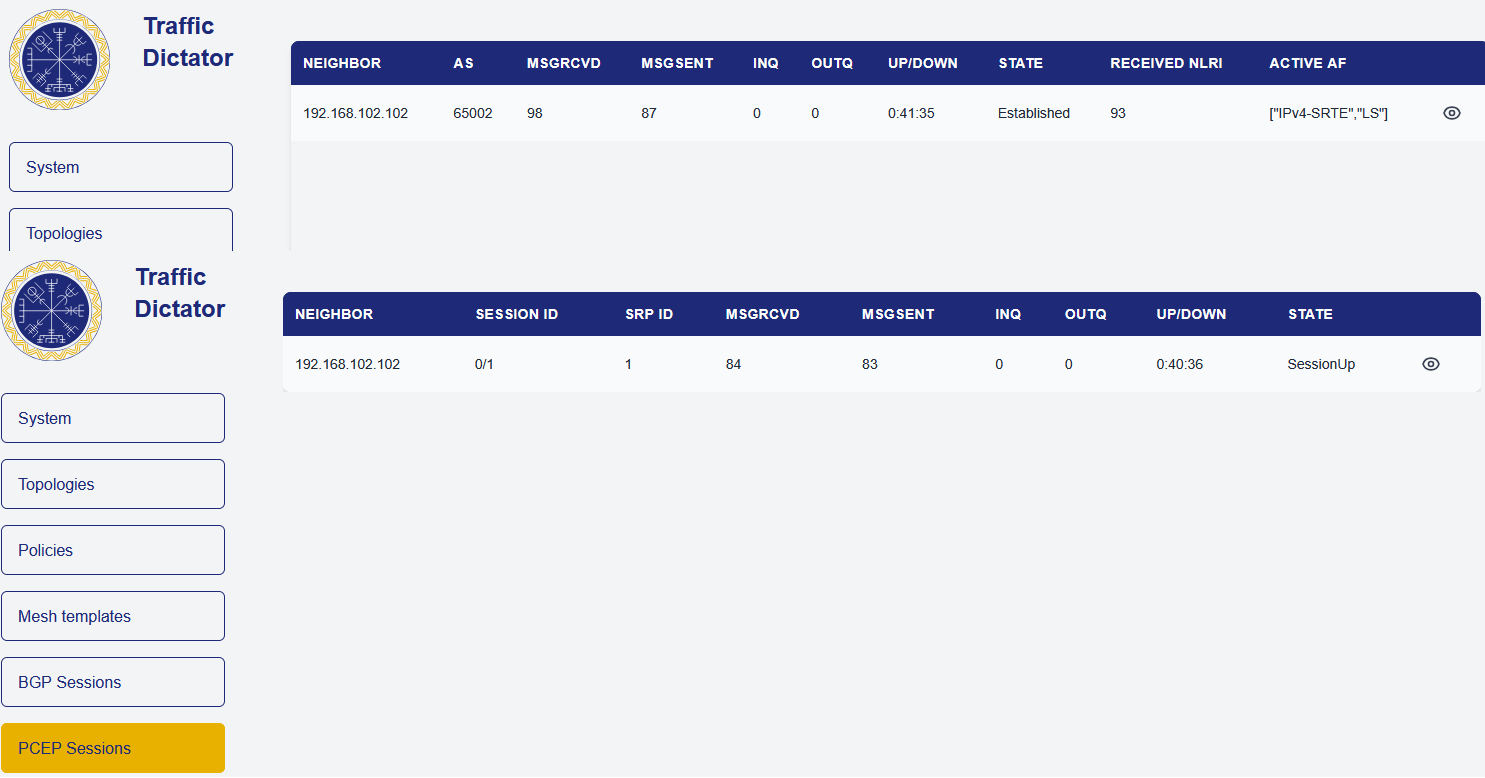
- Monitor BGP and PCEP sessions
Configuring various system settings, BGP, PCEP, affinities, explicit paths, ACL and peer-groups for now is only possible via CLI or HTTP API.
Enable and connect to Web-UI
Web-UI listens on HTTP port 80 and HTTPS port 443 by default; however HTTPS requires a certificate and key to be configured. You also need a local user (or RADIUS configured for Docker container with TD). Config example:
management web-ui
  protocol http
    port 80
  protocol https
    port 443
    certificate server.cert key server.key
!
management users
  !
  user tdadmin
    password encrypted <encrypted-password-hash>
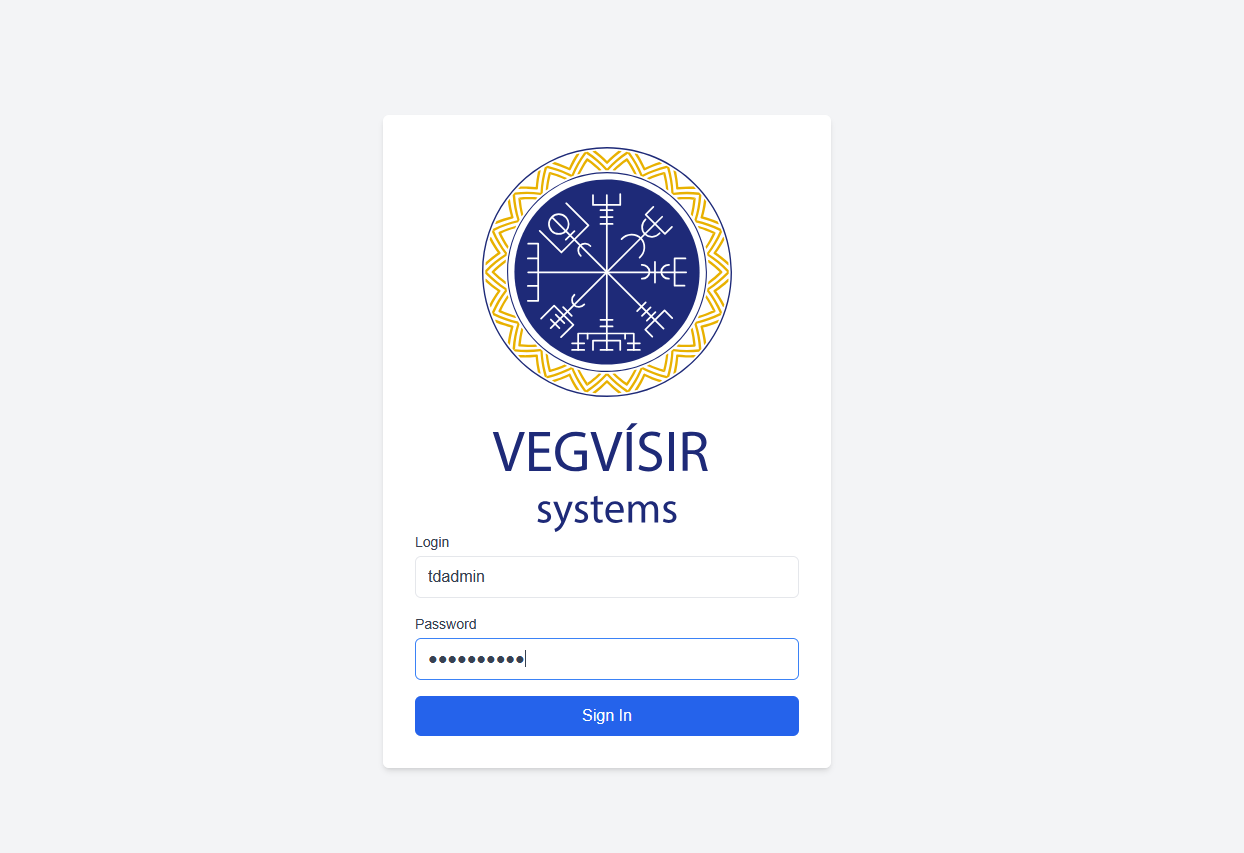
Go to TD container/VM IP in your browser and login:
Topology view
By default, after login, the topology view will open. Here you can see topologies advertised to TD via BGP-LS:
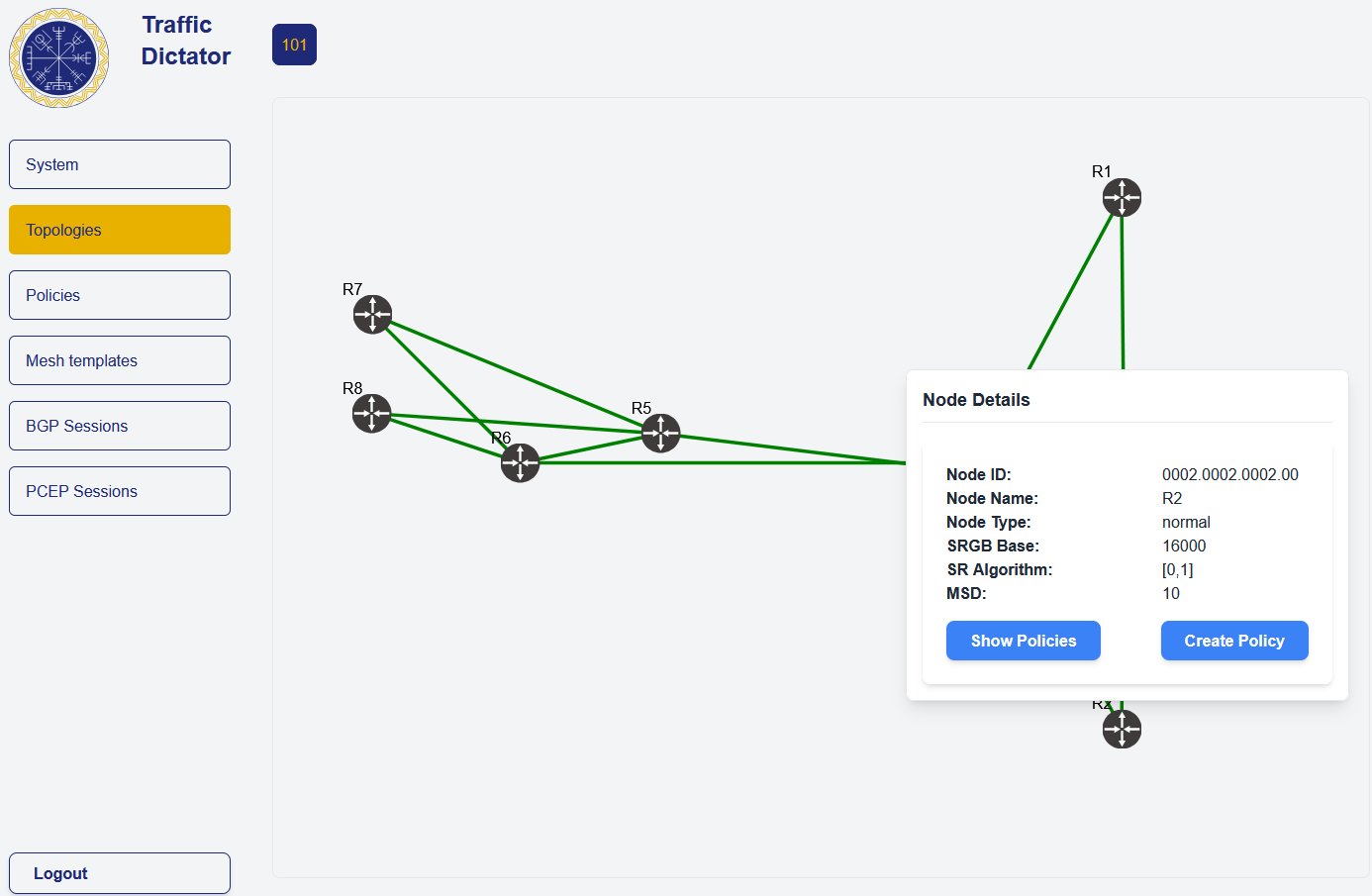
Clicking on a router icon will open some details about this node; you can also see all policies where this router is the headend, or create a new policy. Clicking on a link will show some link details.
Policies view
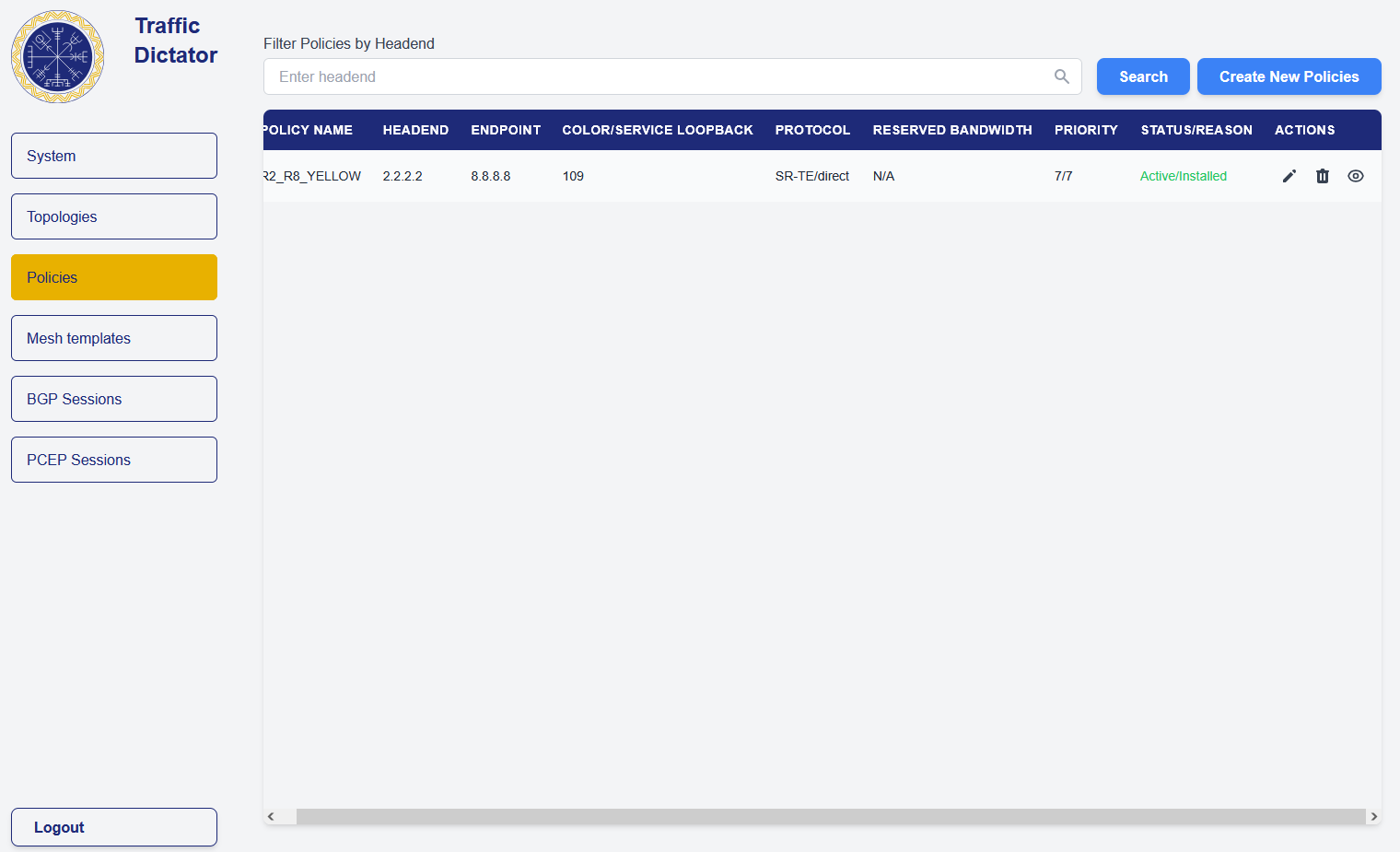
Here you can see all policies, edit, delete and create new policies.
Mesh templates view
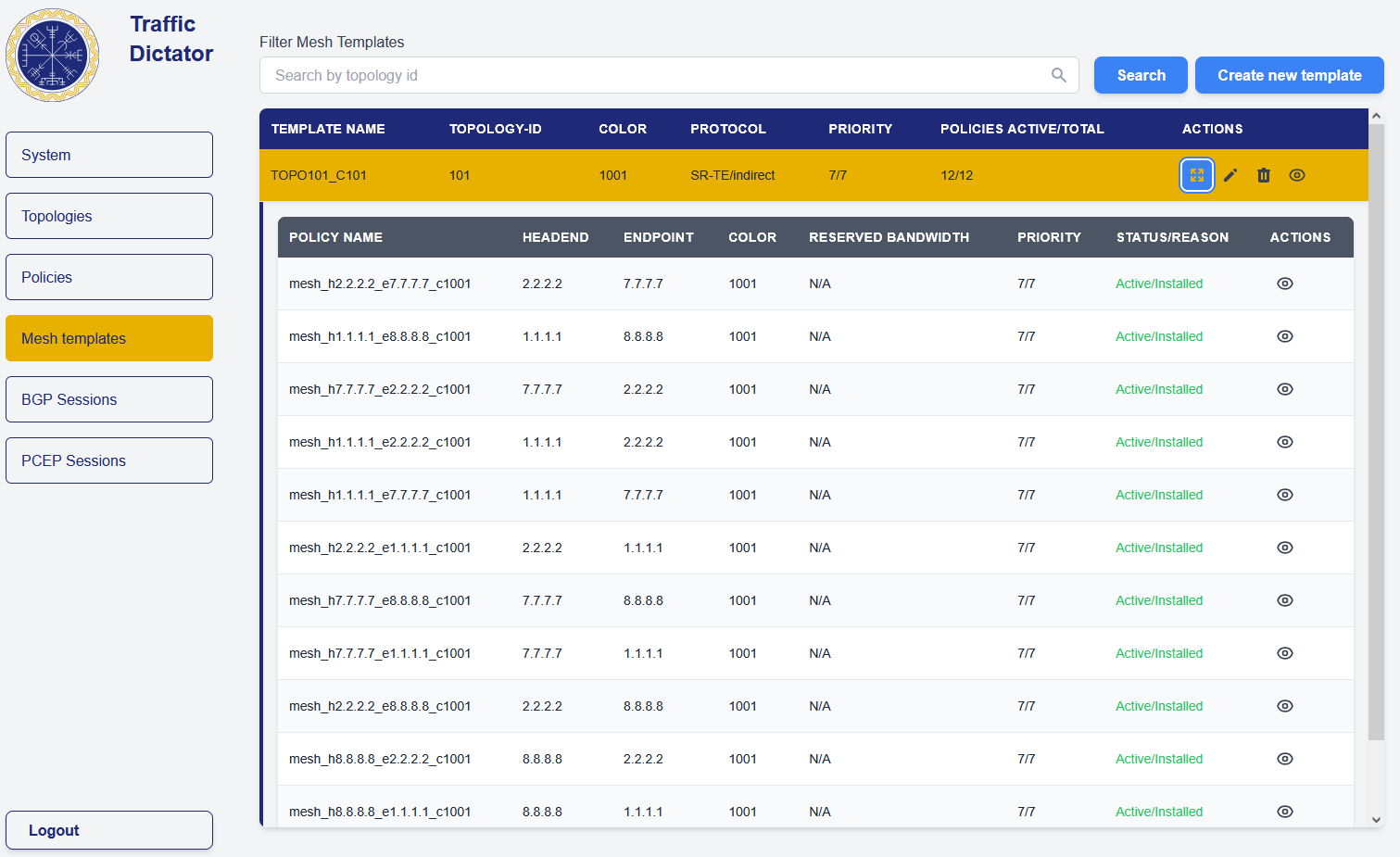
This is very similar to policies view, you can create, edit and delete templates, or check policies generated from each template.
BGP and PCEP sessions
Here you can check the status of BGP and PCEP sessions. The sessions as of now need to be configured from the CLI or API.
Check Web-UI status and change configuration
The following CLI command shows Web-UI status:
TD1#show management web-ui
Web-UI server statistics

HTTP enabled:        True
HTTP running:        True
HTTP port:           80
HTTP port conflict:  None

HTTPS enabled:       True
HTTPS running:       True
HTTPS port:          443
HTTPS port conflict: None
HTTPS certificate:   server.cert
HTTPS key:           server.key
It is also possible to change ports, certificates or disable HTTP:
TD1#conf
TD1(config)#management web-ui
TD1(config-mgmt-web-ui)#protocol http
TD1(config-mgmt-web-ui-http)#shut
Note: if you change Web-UI or HTTP API ports while running TD container not in host mode, you also need to expose the new ports in Docker.